
A firmware updates tracker is a system that shows you, in one place, exactly which firmware version every device is running and where each rollout stands right now. It pulls from manufacturer feeds, on-device agent status, and changelog aggregation. Tools like fwupdmgr, Microsoft’s Device Update agent, and vehicle-specific systems like LRD Track all work on this same principle: don’t guess, watch.
TL;DR:
- Firmware trackers provide a detailed view of each device’s position in the update lifecycle, helping identify systemic issues versus local faults.
- Combining manufacturer feeds, on-device telemetry, community reports, and checksum validation enhances the reliability of firmware rollout tracking.
- Verifying update success requires checking version numbers against official releases and reviewing logs rather than trusting device messages alone.
- Building a tracking setup involves inventorying devices, choosing collection methods, establishing alerts, and piloting before full deployment, with caution around feature updates.
- Managed solutions like LRD Track offer professional installation and continuous monitoring, removing the burden of DIY tracking and reducing the risk of missed or faulty updates.
Table of Contents
- How firmware update trackers show the full update journey
- Where the data actually comes from
- How to check if a firmware update actually worked
- How to set up a firmware updates tracker step by step
- What causes updates to fail, and how to fix them
- How LRD Track keeps tracker firmware current and visible
- Fitting a tracker into fleet and enterprise management systems
- Getting alerts right so you’re not drowning in noise
- Handling rollbacks and downgrades without making things worse
- Does tracking firmware actually change device performance?
- Author’s view: build your own or buy managed monitoring?
- LRD Track: managed tracking for owners who’d rather not run the checks themselves
- Sources
- FAQ
How firmware update trackers show the full update journey
A proper tracker doesn’t just tell you “update available.” It shows you exactly where each device sits in what Microsoft calls the device update journey: a per-device timeline stamped with every stage a rollout passes through.
That lifecycle typically runs through five recognisable states:
- Offered: the device has been notified a new version exists but hasn’t started pulling it.
- Download: the firmware file is transferring to local storage.
- Install: the file is being written to non-volatile memory.
- Reboot: the device restarts to apply the new firmware.
- Complete: the version check confirms success.
Version distribution matters just as much as the lifecycle itself. A good dashboard shows how many devices sit on each firmware build, broken down by region or rollout wave, so you can spot a botched release before it spreads. This is where the timeline earns its keep for troubleshooting. If ten devices randomly scattered across your fleet fail at the “install” stage, that’s probably a device-level fault. If a large share of one rollout wave stalls at exactly the same point, that points to a systemic issue: a bad build, a broken CDN, or a policy conflict rolled out too fast. The device update journey exists precisely to make that distinction visible rather than guessed at.
Where the data actually comes from
Trackers don’t invent their information. They pull from a handful of concrete sources, and knowing which ones a tool uses tells you a lot about how much you can trust it.
- Manufacturer releases and changelogs. Some trackers poll vendor pages on a schedule; others subscribe to an API and get pushed new-release notifications the moment they’re published. API subscriptions are faster and more reliable than polling, which can miss releases between checks.
- On-device telemetry and agent status. This is the richest source. The Device Update agent status API exposes high-level states such as Idle, Downloading, Installing, Rebooting, and Paused, which local processes can poll without hammering the cloud.
- Community telemetry and voluntary reports. Services such as FirmWatch aggregate scraped vendor metadata and user-submitted sightings to flag new firmware before it’s widely known, useful for less-documented device categories.
- Checksum and release-note validation. Serious tracking systems verify a downloaded file’s checksum against the manufacturer’s published hash and cross-reference the changelog text, catching corrupted downloads before they’re ever applied.
The more of these four a tracker combines, the less blind you are to a rollout going sideways.
How to check if a firmware update actually worked
Confirming success sounds simple until you’ve watched a device claim “update complete” while quietly running the old build. The fix is to check the version number against what the vendor actually shipped, not what the device says it did.
On Linux systems, fwupdmgr gives you the cleanest path. Run get-devices to list every recognised device and its current firmware version. Run get-updates to see what’s available. After applying, get-results shows you the outcome of the last update attempt, including whether it succeeded or failed, and report-history gives you a log trail across multiple updates. The fwupdmgr documentation also supports JSON output, so you can script version checks across a fleet instead of clicking through each device manually.
For systems using the Device Update agent, the real value is in the status enum itself. Idle means nothing’s happening. Downloading and Installing are self-explanatory. Rebooting is often where users panic, thinking the device has frozen, when it’s simply mid-restart. Paused usually signals a policy or scheduling hold, not a fault.
Statistic callout: The Device Update agent status API is designed specifically so local processes can poll it before triggering another operation, reducing the chance of two updates colliding mid-write.
- Cross-check version numbers against the manufacturer’s published “latest” build.
- Pull update history logs rather than trusting a single status message.
- Note any error codes returned; they’re your fastest route to a vendor support ticket.
How to set up a firmware updates tracker step by step
Building your own tracking setup isn’t complicated, but skipping a step tends to bite you later, usually during your first real rollout wave.
- Inventory every device and its update channel. List what you own, then find each vendor’s support or firmware page. Some vendors publish a stable API; others only offer a downloads page you’ll need to check manually.
- Pick your collection method. API subscription is best when available. Scraping works as a fallback for vendors without one. Enabling device agent telemetry, where supported, gives you the richest and fastest signal.
- Decide how you’ll be alerted. Email, webhook, or an app push notification, whichever channel you’ll actually check. Match urgency to the alert: a security patch deserves an immediate ping, a minor feature update doesn’t.
- Set a retention policy. Decide how long you keep version history and changelog text. Fleet managers dealing with audits or insurance queries often need at least twelve months of update logs on file.
- Pilot before you roll out wide. Apply any new firmware to a small, non-critical cohort first. Watch for a day or two, then expand once you’re confident the build is stable, a practice backed by Dell’s own guidance on validating firmware before deployment.
Pro Tip: Don’t treat “latest” as automatically “best.” Security patches should go out immediately, but feature-carrying firmware updates are often worth holding back a few days while early adopters surface any bugs.
If you’re managing devices across several sites, a fleet upfitting checklist is worth reviewing alongside your tracker setup, since deployment sequencing tends to matter as much as the tracking tool itself.
What causes updates to fail, and how to fix them
Most firmware failures trace back to one of a handful of causes, and nearly all of them are preventable if you check the right thing first.
Power and connection interruptions during the write phase are the single most common culprit. Manufacturer guidance is consistent on this point: never run a firmware write on battery power alone, and never let the connection drop mid-flash. A cut write can brick a device outright.
- Insufficient storage space blocks the download or install stage before it even starts.
- Conflicting device policies (a scheduled reboot colliding with an install command) leave updates stuck mid-cycle.
- Pending reboots from a previous update quietly block the next one from starting.
- Network or CDN outages cause mass stalls that look like isolated failures until you check the timeline.
The diagnostic trick is pattern recognition across your fleet. One device stuck at “installing” is probably a local fault, check its power and storage. Fifty devices stuck at exactly the same stage points to a network or vendor-side problem, and no amount of local troubleshooting will fix it. When a build proves unstable, rolling back is often safer than repeatedly retrying a failed install; escalate to vendor support once you’ve ruled out power, storage, and connectivity.
How LRD Track keeps tracker firmware current and visible
LRD Track’s approach removes the DIY burden entirely. Every tracker is professionally installed, then monitored around the clock, so anomalies in device behaviour, including signs of an outdated or misbehaving firmware build, get flagged by the monitoring team rather than left for you to spot in a log file.
The LRD Track app gives owners live status visibility without needing to interpret agent states or run command-line checks. Maintenance guidance, including what to do if a tracker seems to be misbehaving after a network change, is covered in LRD Track’s tracker maintenance advice, including detail relevant to the recent 3G network shutdown affecting older trackers.
Fitting a tracker into fleet and enterprise management systems
Once you’re past a handful of devices, a standalone tracker stops being enough. You need it feeding into whatever system already manages your fleet.
The practical integration point is usually the API layer. If your tracker exposes device status through an endpoint (Device Update’s agent status structure is a good model for this), your enterprise management platform can poll it and fold firmware state into existing dashboards, alongside maintenance schedules, insurance data, or asset registers. This avoids the trap of running two disconnected systems that never agree on what’s actually happening.
Correlated alerting is where integration pays off fastest. Rather than a firmware tool shouting into its own inbox, feed events into the same alert pipeline your team already watches, ticketing systems, incident channels, whatever’s in daily use. A stalled rollout then shows up next to every other operational issue, not buried in a separate tab nobody checks on a Friday afternoon.
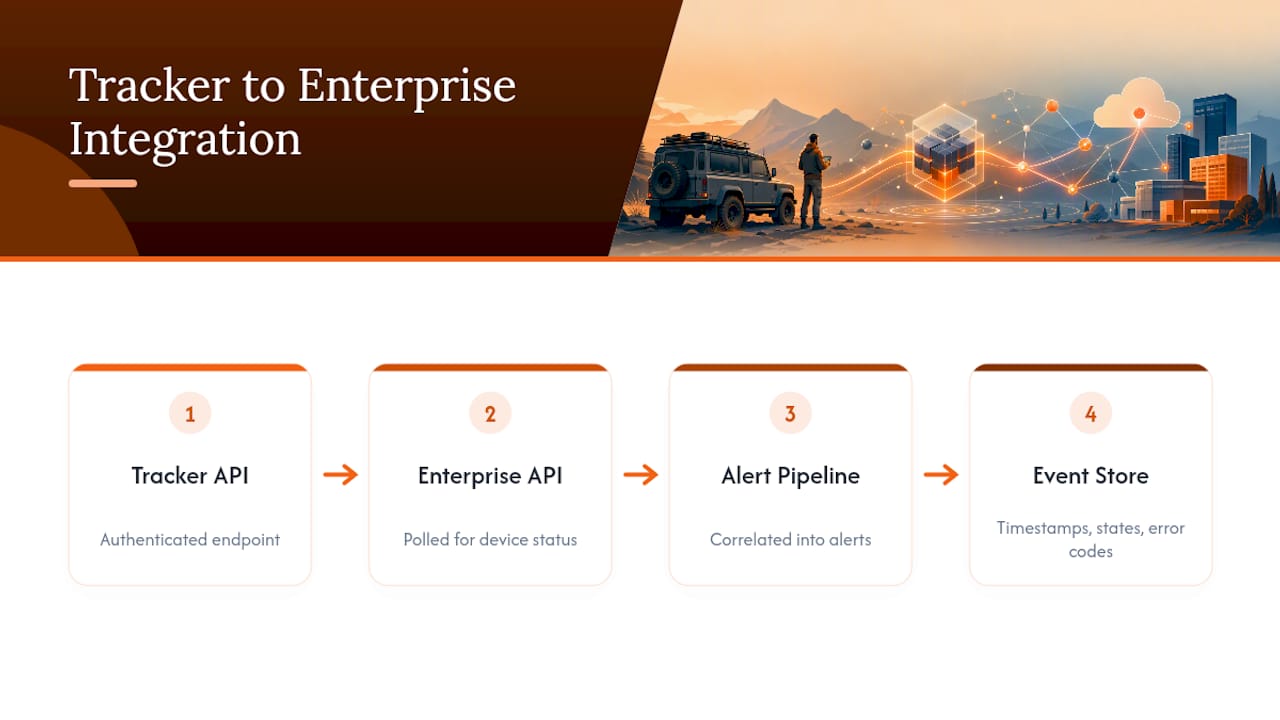
Data retention becomes a shared concern too. Enterprise systems generally need longer audit trails than a consumer tracker keeps by default, particularly for regulated fleets or anything tied to warranty or compliance claims. Building your event timeline to store timestamps, state transitions, and error codes, in line with how the device update journey structures its own records, means that data is still usable months later when someone asks “what happened to device 47 in March?”
Security matters here too. Any integration point that exposes device state should sit behind proper authentication; a firmware tracker’s API is a small but real attack surface if left open.
Getting alerts right so you’re not drowning in noise
Alerting is where most tracking setups quietly fail, not through missing an update, but through burying the one alert that mattered under fifty that didn’t.
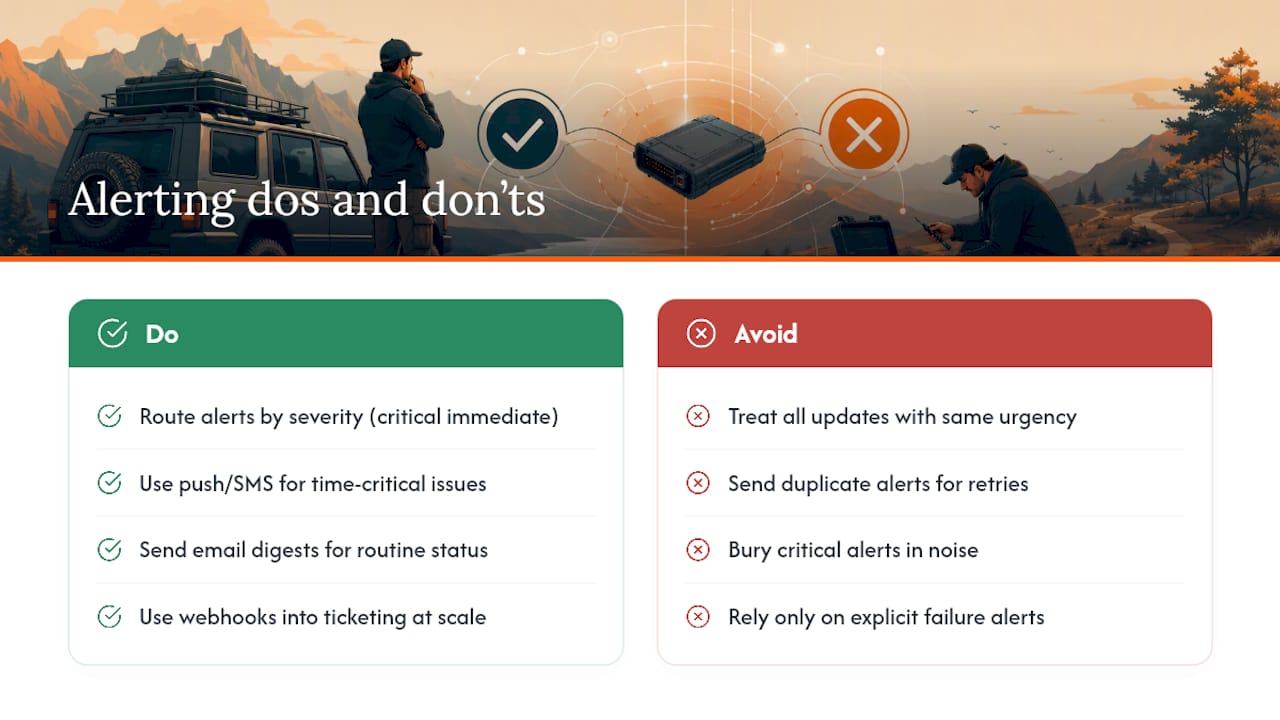
Severity-based routing solves most of this. A security patch failing to apply should trigger an immediate, hard-to-ignore alert. A routine feature update sitting one day behind schedule doesn’t need the same urgency, a daily digest is plenty.
Match the channel to the urgency. Push notifications and SMS suit anything time-critical. Email digests work for status summaries nobody needs to act on instantly. Webhooks into a ticketing or incident system make sense once you’re managing more than a handful of devices, since they let the alert become a tracked task rather than a message someone might miss.
Deduplication deserves attention too. A device retrying a failed install five times shouldn’t generate five identical alerts. Group by device and event type, and only escalate once a retry threshold is crossed, otherwise your alert channel becomes noise nobody trusts, which defeats the entire point of building one.
Finally, alert on absence, not just presence. If a device that reports in daily goes quiet for seventy-two hours, that’s often more urgent than a firmware version being one release behind. A tracker that only watches for explicit failure states misses the devices that have simply stopped talking altogether.
Handling rollbacks and downgrades without making things worse
Rolling back firmware feels like undoing a mistake, but done carelessly it creates a second one. The core rule: never treat a downgrade as symmetrical with the upgrade that caused the problem.
Before rolling back, confirm the rollback path is actually supported. Not every device accepts a downgrade cleanly, some vendors block it entirely once certain security or bootloader versions have been applied, precisely to prevent reintroducing a patched vulnerability.
Treat a rollback with the same caution as the original update. Stable power and connectivity matter just as much during a downgrade write as they do during an upgrade, since the interruption risk is identical either way.
Document why the rollback happened. If a build caused a specific failure mode, that detail needs to sit in your update history alongside the version number, otherwise you risk reapplying the same broken firmware six months later when nobody remembers the original incident.
Pilot the rollback too, on the same small cohort logic you’d use for a forward update. A downgrade that fixes one device’s issue can just as easily break something else that depended on a feature only present in the newer build.
Does tracking firmware actually change device performance?
Watching firmware updates doesn’t slow a device down. Reasonably designed agent telemetry, of the kind the Device Update agent status API provides, is built for lightweight local polling rather than constant cloud chatter, so the overhead is minimal.
Where tracking genuinely improves the experience is in avoiding the failures that actually hurt performance. A device stuck retrying a failed install repeatedly, or one silently running three versions behind while everything else has moved on, tends to behave worse than one caught early and fixed. Visibility catches that drift before it becomes a pattern.
For vehicle-based systems specifically, the user experience gain is more about confidence than raw speed. Knowing a tracker’s firmware is current and its status is being watched removes the low-level anxiety of “is this thing actually working right now?” That’s a different kind of performance, but a real one for anyone relying on the device for security rather than convenience.
Author’s view: build your own or buy managed monitoring?
DIY tracking with fwupdmgr or agent APIs suits confident owners with a handful of devices and time to spare. Once reliability, insurance compliance, or a vehicle’s security genuinely matters, a managed service like LRD Track’s tracking solutions removes the guesswork entirely.
— Will
LRD Track: managed tracking for owners who’d rather not run the checks themselves
Everything above works if you’re willing to run fwupdmgr commands, poll agent status, and build your own alert pipeline. LRD Track exists for the Land Rover owner who’d rather someone else did that watching, permanently, without them lifting a finger.
LRD Track’s Thatcham-approved trackers for cars come with professional installation across the UK and 24/7 monitoring built in, so device status, including firmware health, is watched by a real team rather than a dashboard you have to remember to check. Options range from the £179 S7 tracker through to the £449 S5 Plus tracker and immobiliser, alongside ongoing subscriptions such as the £6 per month DEFEND tracker plan for Defender owners specifically. Every model is built around Land Rover’s specific security needs, Defender, Discovery, and Range Rover included, with lifetime warranty cover backing the hardware.
If you own a Land Rover and want that visibility without building it yourself, browse the full LRD Track range and get a tracker fitted.
Sources
FAQ
How do I check if a firmware update was successful?
Compare the installed version against the manufacturer’s published latest release. On Linux, fwupdmgr get-results shows the outcome of the last update attempt, including any error codes if it failed.
How do I update a tracker’s firmware?
Most vehicle trackers, including those from LRD Track, update remotely through the monitoring provider rather than requiring owner action. Where manual updates apply, check the device’s companion app or web interface for a firmware section before starting.
How do I do firmware updates in general?
Confirm a stable power source and connection first, since interruptions during the write phase are a leading cause of failed updates. Then download the file from the manufacturer, apply it through the device’s own update tool or utility, and verify the new version afterwards.
Where are firmware updates stored?
Firmware files typically download to local temporary storage on the device or companion app before being written permanently to non-volatile firmware memory. This is why an interrupted write can leave a device unusable, the old firmware is already partially overwritten before the new version finishes writing.
What does the LRD Track tracking subscription cost?
DEFEND tracker subscriptions start at £6 per month, with the DEFEND-Plus plan at £10 per month for Defender owners. Pricing for the Thatcham-approved and Ultra subscription tiers is available directly on the LRD Track website.